zoho
Connect Zoho CRM to Claude or ChatGPT with Zoho MCP (2026)
Connect Zoho CRM to Claude or ChatGPT with Zoho MCP: step-by-step setup, the right tools and auth mode, and how to fix the data center region error.
8 Nov 2026 · 9 min read · Abhijeet Singh
On this page 12 sections
If your team already lives in Zoho CRM and in Claude or ChatGPT, the obvious next question is whether the chatbot can read and update CRM records directly. As of November 2026 it can, through Zoho MCP, Zoho's own service for connecting AI assistants to Zoho apps. This guide walks through how to connect Zoho CRM to Claude or ChatGPT with Zoho MCP, using Zoho's published setup steps, and explains the region error that trips up many first attempts.
A quick note on scope: this is a setup and decision guide built from Zoho's documentation, OpenAI and Anthropic help material, and public bug reports. It is not a review of a long-running production deployment.
What Zoho MCP actually is
MCP (Model Context Protocol) is an open standard that lets an AI assistant call tools on another system. A "tool" here is a single action, such as "get lead records" or "update a deal". Zoho MCP is Zoho's hosted MCP server builder: you pick which Zoho actions an assistant is allowed to use, and Zoho gives you one server URL to paste into Claude, ChatGPT or another MCP client.
It is one of three broad ways to put AI on top of Zoho CRM. The others are Zoho's built-in Zia agents and a workflow tool such as n8n sitting in between. If you are still choosing, our guide to AI agents for Zoho CRM and how the options compare covers when each one fits. Zoho MCP is the right pick when people want to ask questions and make quick changes from a chat window, rather than run fixed automations in the background.
What it costs
According to Zoho's MCP pricing page, Zoho MCP is included at no extra cost for Zoho users: there is no activation fee, per-user charge or separate subscription. The catch is that every action the assistant takes uses your existing Zoho API allowance. A chatty assistant pulling hundreds of records a day draws down the same daily API credits your integrations rely on, so it is worth understanding how Zoho CRM API limits and credits work before you roll it out to a whole sales team.
On the AI side, you need a plan that allows custom connectors:
- Claude: Zoho's quick start guide says you need a Claude.ai plan that permits custom connectors. Check Anthropic's current plan page, because connector availability by plan has changed several times.
- ChatGPT: Full MCP access runs through Developer mode. Third-party guides checked in July 2026 report that full read and write access is limited to Business, Enterprise and Edu workspaces, with Pro accounts limited to read and fetch actions and Free accounts excluded. OpenAI changes this often, so confirm against its help center before you plan around it.
Before you start: find your Zoho data center
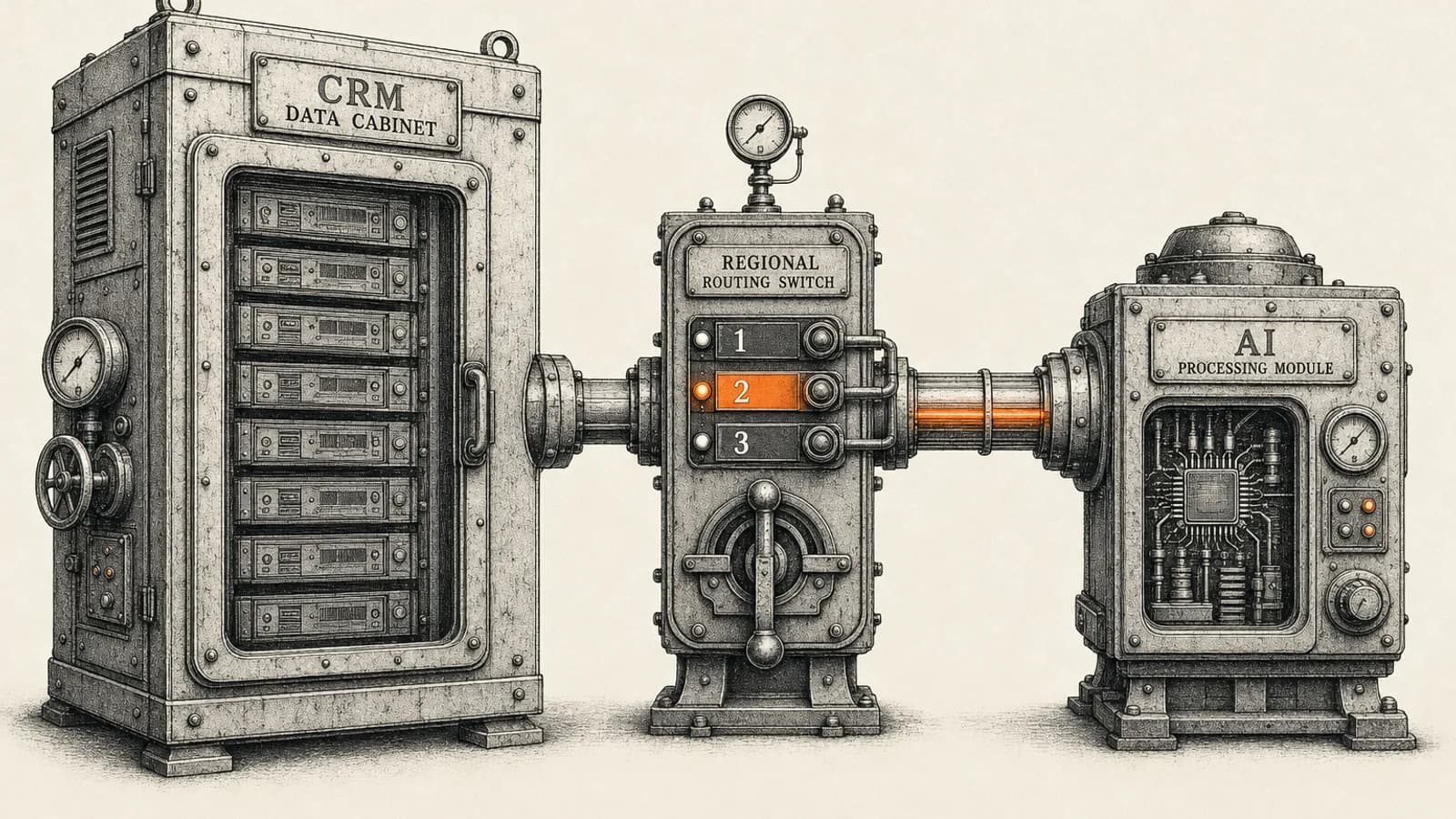
This single step prevents most failed connections. Zoho runs separate data centers, and your account, your data and your MCP server must all be in the same one. Open Zoho CRM in your browser and look at the address bar:
crm.zoho.commeans the US data center, and the MCP console is atmcp.zoho.comcrm.zoho.eumeans the EU data center, with the console atmcp.zoho.eucrm.zoho.com.aumeans the Australian data center, with the console atmcp.zoho.com.au
Zoho's documentation also lists consoles for its other regions, such as Japan. If you are in the UK, check which data center your account was created on rather than assuming. Always build your server in the console that matches your CRM domain.
Step 1: Create a Zoho MCP server
Sign in to the Zoho MCP console for your region with your Zoho account. Zoho's implementation guide describes two ways to start:
- Pre-configured server: click Create Server and choose a ready-made option such as the CRM Data and Metadata Operations server, then review the tools it includes.
- Custom server: click Create MCP Server, give it a name, and add only the tools you want.
For a first rollout, a custom server is usually the safer choice because you decide exactly what the assistant can touch.
Step 2: Add only the Zoho CRM tools you need
Open the Tools section, click Add Tools, filter by Zoho CRM, and select actions. Zoho's own example uses getLeadsRecords and updateLeadsRecords. Zoho recommends keeping a server at or below 300 tools so the assistant is less likely to pick the wrong one, but most business use cases need far fewer.
A sensible starting set:
- Read tools first: get records, search records and module metadata for Leads, Contacts, Accounts and Deals.
- One or two write tools: for example update Leads, once you trust the results.
- No delete tools at the start. Add them later only if there is a clear reason.
You can build several servers with different tool sets, each with its own URL. A read-only server for the wider team and a separate server with write tools for managers is a clean pattern.
Step 3: Choose an authorization mode
Zoho MCP offers two modes for Zoho services:
- Authorize on Demand (the default): each person signs in to Zoho from their AI client the first time they use it. Actions run with that person's own Zoho permissions.
- Authorize via Connections: authorization is set up once inside Zoho MCP. This is required for third-party services and convenient for shared setups, but it means everyone using the server acts through the connected account.
For most CRM teams, Authorize on Demand is the better default. Zoho CRM's roles, profiles and sharing rules keep applying to each user, so a sales rep cannot use the assistant to see records they could not see in the CRM itself.
Step 4: Connect Zoho CRM to Claude
Copy the MCP URL from the Connect section of your server, then, following Zoho's guide:
- In Claude, open Customize, then Connectors, as Zoho's guide describes.
- Add a custom connector, give it a name such as "Zoho CRM", and paste the URL.
- Select the connector, click Connect, and complete the Zoho sign-in and consent screen.
- In a new chat, make sure the connector is switched on and ask a simple read question, such as listing five recent leads.
Zoho has also published its own Zoho CRM connector in Claude's connector directory, according to a third-party integration guide updated in October 2026. A custom connector built from your own Zoho MCP server gives you more control over exactly which tools are exposed.
Step 5: Connect Zoho CRM to ChatGPT
Zoho's implementation guide gives this flow, once Developer mode is available on your account:
- In ChatGPT, go to Profile, then Settings, then Apps, and click Create App.
- Enter a name and description and paste your Zoho MCP server URL.
- Choose OAuth as the authentication type and click Create.
- On the Zoho authorization screen, click Allow.
On Business and Enterprise workspaces, an admin may need to enable connectors or Developer mode first. If the option is missing on a work account but visible on a personal one, that is usually the reason.
The region error and how to fix it
The most common failure is a data center mismatch. A public issue in Anthropic's claude-ai-mcp repository on GitHub (issue 311) reports that Claude's Zoho CRM connector sent sign-in to the EU data center for accounts that live on the US one. The reported error reads:
Error while Initiating OAuth. Invalid server url. Kindly re-verify oauth url from metadata and try again.
A related symptom reported in the same thread from EU accounts is that sign-in succeeds and tools appear, but every call fails with "Connection Error while executing tool". The earliest dated reproduction in that thread is from May 2026, further reports followed in June and July 2026, and as of the thread's latest comments no official fix had been posted.
What to try, in order:
- Confirm your data center from your CRM address bar, as described above.
- Rebuild the server in the matching console, for example
mcp.zoho.eufor an EU account, and copy that server's URL. - Remove the old connector completely from Claude or ChatGPT and add a fresh custom connector with the new URL. Zoho's troubleshooting guidance for its other MCP connectors recommends exactly this for wrong-data-center connections.
- Check the connection inside Zoho MCP. If you use Authorize via Connections, re-authorize it from the console.
- Check the logs. Zoho MCP keeps execution logs for 30 days, filterable by status, tool and execution ID, which shows whether calls are reaching Zoho at all.
Be aware that some commenters in the GitHub thread said a custom connector with an EU URL did not fix the problem for them. If you have tried every step above, contact Zoho support with your data center, the time of the failure and the exact error text, and never include tokens or passwords in the ticket.
Security checks before you roll it out
Connecting a chatbot to your CRM gives it real reach into customer data. Before inviting the team:
- Start read-only and add write tools one at a time.
- Use personal authorization so CRM permissions apply per user.
- Review the data question: what leaves Zoho, and under which AI provider's terms. Our write-up on whether Zoho CRM data goes to OpenAI covers the GDPR and CCPA angles.
- Keep tool approval prompts on in your AI client for any action that changes data.
- Know how to switch it off: Zoho MCP lets you disable a server temporarily, revoke a user's connection, or delete the server.
The same discipline applies to any MCP server, not just Zoho's. A short checklist for vetting MCP servers before connecting them is a good companion read.
When Zoho MCP is not the right tool
Zoho MCP is built for people chatting with their CRM. It is a poor fit for jobs that must run the same way every time without anyone asking, such as routing new leads, syncing invoices or sending follow-ups on a schedule. Those belong in Zoho workflow rules, Blueprint, Zoho Flow or n8n, where each step is logged and predictable. Many teams end up with both: MCP for ad hoc questions, automations for the repeatable work.
When we set this up for clients, we usually start with a narrow, read-only server for one team, watch the logs and API usage for a couple of weeks, and only then add write access.
Need help connecting Zoho CRM to AI?
If you want Claude or ChatGPT working against your Zoho CRM without guessing at permissions, regions and API limits, our Zoho CRM consulting and automation services can help you scope it, set it up and lock it down. Book a call through the website to talk through your setup.
Related resources
Keep building the automation map
Move from the guide into the services and proof pages connected to this topic.
Related services
Service
Explore Zoho CRM Consulting
Zoho CRM setup, custom modules, client scripts, Deluge functions, workflow rules, and cross-module automation.
Service
Explore AI Agent Development
AI agents for sales replies, lead memory, storyboard generation, data extraction, and structured automation outputs.
Service
Explore AI Voice Agents
AI voice agents that answer calls, qualify leads, book appointments, and log every conversation into your CRM.
Further reading
Article
Read: Zoho CRM API Limits in 2026: How to Budget Your Credits
Zoho CRM API limits run on credits, not call counts. See the per-edition credit maths, the operations that cost most, and how to design integrations that fit.
Article
Read: Do You Need Zoho CRM Enterprise for AI Features in 2026?
Do you need Zoho CRM Enterprise AI features? Here's which Zia and Zia Agents tools each edition gets in 2026, the USD cost by plan, and when to upgrade.
Article
Read: Zoho SalesIQ Zia Agents in 2026: What to Automate First
Zoho SalesIQ Zia Agents shipped in 2026. Which edition you need, how they differ from Answer Bot and Zobot, and what to automate first without risking CX.
Proof pages
Case study
See case study: Custom Zoho CRM with Auto-Pipeline for a Freight Forwarder
A freight CRM that carries an enquiry through contacts, accounts, deals, quotes, jobs, cost sheets, and invoicing — with client scripts and Deluge automation removing the re-typing between every stage.
Case study
See case study: Multilingual WhatsApp Sales Bot for an International Freight Forwarder
A WhatsApp AI sales assistant that qualifies freight enquiries in three languages, remembers every conversation, and alerts the sales team the moment a quote is requested.